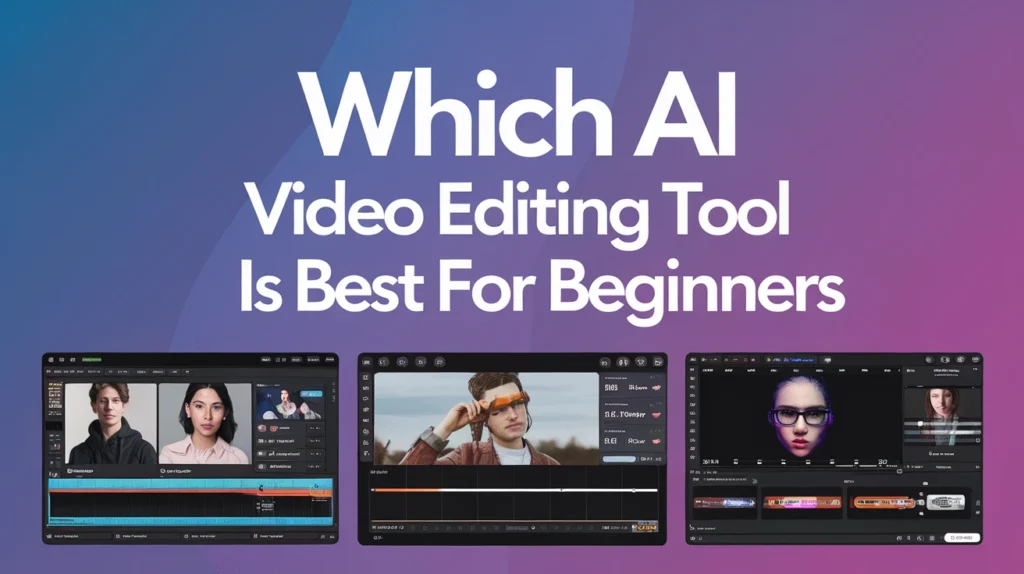
If you’re wondering which AI video editing tool is best for beginners, you’re in the right place. The good news: you don’t need to be a video expert or spend hours learning complex software to create high-quality videos. AI-powered editors make video production accessible, fast, and surprisingly intuitive.
In this guide, I’ll walk you through the top AI tools for beginner video creators, explain what to look for, provide real-world examples, and help you choose the right tool for your goals.
Why Beginners Should Use AI-Powered Video Editors
Before diving into specific tools, let’s look at why AI video editors are a game-changer, especially for beginners.
- Low Learning Curve Traditional video editing software can be daunting: timelines, keyframes, color correction, and so on. AI-powered tools often simplify these workflows, so you can focus on creativity rather than technical complexity.
- Time Efficiency AI features can automatically remove silence, generate captions, sync music, or even assemble video from text. That means faster turnaround and less manual editing.
- Cost-Effective Instead of hiring a videographer or editor, beginners can rely on affordable or even free AI tools to get professional-looking results.
- Accessible from Anywhere Many AI editors are web-based or mobile — so you don’t need a high-end workstation to start creating.
- Scalable Output Whether you’re making short social media clips, tutorials, or marketing videos, AI helps you scale up production without scaling up complexity.
Key Criteria: What Makes an AI Video Editor Beginner‑Friendly
When evaluating which AI video editing tool is best for beginners, keep these factors in mind:
- Intuitive Interface: Simple drag-and-drop, preset templates, minimal manual timelines.
- AI Automation: Features like auto-captioning, filler‑word removal, background removal, or auto-generation from text.
- Support & Learning Resources: Tutorials, community, help guides.
- Value/Pricing: Free or low-cost plans with enough features to get started.
- Export Options: Easy export for social media, usable resolution, and formats.
With that in mind, here are some of the top AI video editing tools I recommend for beginners.
Top Beginner‑Friendly AI Video Editing Tools
Here are several AI-powered video editors that stand out for their user-friendliness, especially for beginners.
1. CapCut
Why It’s Great for Beginners CapCut is widely praised as one of the most accessible tools for newcomers. Its interface is clean, and it brings a surprising amount of AI power to mobile and desktop platforms. According to Beebom, CapCut’s AI tools can remove filler words, translate, auto-generate subtitles, and more. Beebom
Key Features:
- Auto-cut / AutoScissor: Remove “uhs,” “ums,” and awkward pauses using AI. Beebom+1
- AI voices & translation: Translate clips or generate voiceovers. Stively+1
- Background removal: Remove or replace background without a green screen. Beebom
- Templates: Start with trend-based templates tailored for social media.
Pros:
- Extremely beginner-friendly
- Freemium model with useful free features
- Works on mobile + desktop
Cons:
- Advanced users might want more granular control
- Some AI tools locked behind premium
Typical Use Cases: Creating TikToks, Instagram Reels, YouTube Shorts, and other short-form content.
2. Wondershare Filmora
Why It’s Great for Beginners Filmora is well-known for balancing simplicity and power. While not solely an “AI video editor,” recent versions incorporate AI features that help beginners achieve professional results.
Key AI Features:
- AI Scene Detection: Automatically detects different scenes in your footage. CamTech Zone+2WP Newsify+2
- AI Color Correction: Auto-adjusts color tones to improve visual appeal. CamTech Zone+1
- Smart Cutout / Portrait: Separates subjects from the background automatically. WP Newsify+2Reelmind+2
- AI Noise Cancellation: Improves audio clarity by removing background noise. CamTech Zone+1
Pros:
- Very intuitive drag‑and‑drop interface
- Powerful enough for serious editing but not overwhelming
- Good mix of AI automation and manual control
Cons:
- Requires installation (not fully web-based)
- Free version may have some feature or export limitations
Use Cases: Editing travel vlogs, tutorials, marketing content, and educational videos.
3. Wisecut
Why It’s Great for Beginners Wisecut is especially suited for creators who primarily need help with dialogue, pacing, and cuts — like vloggers, educators, and interviewers.
Key Features:
- Silence & Filler Removal: Automatically removes long pauses and “ums.”
- Auto‑subtitles: Generates captions for your video.
- Music Ducking: Automatically adjusts music volume based on speech.
- AI Voiceover: Optionally add AI voiceovers.
Pros:
- Very simple interface – focused on optimization rather than complex effects
- Saves huge editing time
- Collaborates well with creators who produce talking-head content
Cons:
- Limited control over advanced effects
- Not ideal for complex cinematic editing
Use Cases: YouTube vlogs, e-learning videos, podcasts, tutorials.
4. Descript
Why It’s Great for Beginners Descript offers a radically different editing model: you edit video like you’re editing a document. That makes it extremely approachable for beginners, especially those dealing with spoken content.
Key Features:
- Text-based Editing: Cut or rearrange video by editing transcript text.
- Overdub AI: Create or correct voiceovers using AI voice cloning.
- Automatic Captions: Generate subtitles easily.
- Screen Recording: Record your screen and webcam together.
Pros:
- Natural editing workflow — think “edit the words, edit the video”
- Great for content where speech is central
- Saves lots of time on transcription and captioning
Cons:
- Not focused on visual effects or motion graphics
- AI voice cloning requires careful use (licensing, voice rights)
Use Cases: Tutorials, webinars, educational content, podcast-video hybrids.
5. InVideo
Why It’s Great for Beginners InVideo is ideal if you want to create video content from text or scripts. It’s very template-rich and offers AI features that speed up footage generation.
Key Features:
- Text-to-Video: Paste a script or article, and InVideo helps build a video. VEED.IO+1
- AI Voiceovers: Generate voiceovers in multiple languages. VEED.IO
- Auto Subtitles: Add captions instantly. VEED.IO
- 5,000+ Templates: Ready-to-use designs for social media, ads, explainer videos, and more. CamTech Zone+1
Pros:
- Very beginner-friendly
- No video footage needed – you can build from text
- Fast content creation
Cons:
- Less flexible than full timeline editors
- AI-generated transitions or matching may feel generic
Use Cases: Promo videos, social media content, blog-to-video repurposing.
6. Veed.io
Why It’s Great for Beginners Veed.io is a browser-based editor that makes AI-powered editing accessible and easy. No heavy software installation is required, and the AI features help with key editing tasks.
Key Features:
- Automatic Subtitles: Quickly auto-generate captions. Pixazo+1
- Background Noise Removal: Clean up audio with AI.
- Templates: Pre-built layouts for social, educational, and marketing content.
- Collaboration Features: Team editing in browser.
Pros:
- Fully in-browser – very accessible
- Intuitive design for new users
- Great for cleaning up and polishing videos
Cons:
- May not support very large video files
- Advanced effects are limited compared to desktop editors
Use Cases: Social media content, work presentations, short-form marketing videos.
7. MagicShot.ai
Why It’s Great for Beginners MagicShot.ai is explicitly built to make video editing simple — especially for people with little to no prior experience.
Key Features:
- Prompt-based Interface: Describe what you want, and the AI helps build it. MagicShot
- Text or Image to Video: Generate visuals and motion from text or images. MagicShot
- Simple UI: Very clean, minimal, and beginner‑friendly.
Pros:
- Extremely low barrier to start
- Encourages experimentation using text-based prompts
- Free credits to test before upgrading MagicShot
Cons:
- Might not yet match depth of more mature tools
- Output styles depend on AI models, which can feel “templated”
Use Cases: Quick promos, animated sequences, social-first video posts.
8. Google Vids
Why It’s Great for Beginners Google Vids is a newer AI-powered video creation tool from Google Workspace. It’s designed for informational and business videos, making it great for non‑creators who need structured, polished output.
Key Features:
- AI Storyboarding: Use prompts to build video with scenes, images, voiceovers. Wikipedia+1
- Collaborative Workflow: Built into Google Workspace for easy team use. Wikipedia
- Media Library Access: Choose stock assets or upload your own.
Pros:
- Seamless integration with Google tools
- Easy for beginners in corporate or educational settings
- No major technical overhead
Cons:
- Still rolling out, so features may be limited depending on region
- Not yet as advanced for cinematic editing
Use Cases: Training videos, onboarding clips, internal presentations.
How to Choose the Best One for You
Since you’ve read through the options, here’s a side-by-side framework to help you decide which AI video editing tool is best for beginners — tailored to your goals:
Your GoalRecommended Tool(s)Why It FitsSocial media / Short-form contentCapCut, Wisecut, Veed.ioAuto-cut, templates, captions, and mobile support make fast editing easy.Turning blog or script into videoInVideo, MagicShot.aiText-to-video and AI voiceovers streamline content creation.Talking-head content / tutorialsDescript, WisecutText-based editing, auto-captioning, and silence removal.Professional but simpleWondershare FilmoraOffers desktop power + AI help without overwhelming complexity.Business / Training VideosGoogle VidsIntegrated with Google Workspace, supports storyboarding and collaboration.
Real‑Life Examples & Scenarios
To make this more concrete, let me walk you through a few real-world scenarios where beginners used AI video editing tools — and succeeded.
Example 1: Social Media Creator on a Budget
Scenario: A TikToker wants to make polished, 30‑second videos without hiring an editor. Solution: They use CapCut. They film short clips on their phone, upload to CapCut, run the auto-cut tool to remove filler words, add auto-generated captions, and apply a trendy template. The result? A clean, high-engagement TikTok — all done in minutes.
Example 2: Small Business Marketing Team
Scenario: A small e-commerce business wants to repurpose blog content into video testimonials. Solution: They paste their product descriptions and blog posts into InVideo, pick a template, let AI arrange scenes, generate a voiceover, and export a polished promo. Using Wisecut afterward helps them trim pauses and add music for a more natural flow.
Example 3: Educator Creating Tutorial Videos
Scenario: A teacher wants to make online tutorial videos with screen recording and voice explanations. Solution: They use Descript to record their lecture, then fine-tune the video by editing the transcript. With Overdub, they can fix any mistakes in their spoken script without re-recording. They finish by adding captions automatically.
Tips for Beginners to Maximize AI Video Editing
- Start Small: Don’t attempt a full-blown ad right away. Begin with a 30‑second social clip or tutorial to get familiar.
- Use Templates: Templates can be lifesavers. They give structure while letting AI handle transitions, layout, and design.
- Check & Correct AI Output: Always review AI-generated voiceovers, subtitles, and cuts. AI isn’t perfect — sometimes it mishears or misplaces phrases.
- Leverage Learning Resources: Use YouTube tutorials or tool-specific help docs. For example, there’s a helpful tutorial on using AI in Clipchamp.
- Iterate Over Time: As you grow more confident, slowly incorporate more advanced features — like background removal, color correction, or more complex AI prompts.
- Mind Your Export Settings: Choose the right resolution and format depending on your platform (YouTube, Instagram, etc.).
Potential Challenges & How to Overcome Them
While AI video editing is powerful, beginners may face some common hurdles. Here are what those are — and tips to navigate them.
- Over‑reliance on AI
- Problem: Relying too much on AI can make videos feel generic.
- Solution: Customize templates and tweak AI suggestions. Always add your personal touch — a unique intro, custom branding, or voice variation.
- AI Mistakes
- Problem: Automatic captions or cuts may contain errors or mis-timings.
- Solution: Manually review and edit—especially important for educational or business content where accuracy matters.
- Budget Limitations
- Problem: Some AI features are locked behind paid plans.
- Solution: Use free tiers to get started (CapCut, Veed, some InVideo plans). Prioritize which AI features you really need and upgrade later.
- Export Quality Constraints
- Problem: Free or web-based versions may restrict resolution or add watermarks.
- Solution: Test exports early. If the final quality is insufficient, upgrade or switch to a tool with better export options.
Why These Tools Build Trust (EEAT Perspective)
From an Experience, Expertise, Authority, and Trustworthiness (EEAT) standpoint, these tools and recommendations are rooted in:
- Real User Feedback: Many of these tools (like CapCut, Descript, InVideo) are recommended by creators on major forums and platforms. Reddit+2Reddit+2
- Trusted Sources: Reputable tech websites and review platforms highlight these editors. Beebom+2Pixazo+2
- Vendor Transparency: Many of these tools (e.g., Filmora, CapCut) clearly document their AI capabilities, pricing, and terms of use.
- Published Research & Innovation: Tools like Descript and others use AI models for transcription and voice generation that are well documented.
Future Trends: Where Beginner AI Video Editing Is Heading
Looking ahead, beginner-friendly AI video tools are likely to evolve in several exciting ways:
- Natural Language Editing: Research like ExpressEdit shows promise for editing via plain English and sketching. arXiv
- Instructional & Reasoning AI: Cutting-edge models like VEGGIE allow users to edit videos based on textual instructions. arXiv
- Diffusion Model Edits: New techniques like RAVE enable fast zero-shot video edits using AI. arXiv
- Better Audio/Spatial Effects: Tools like MIMOSA explore spatial audio generation for more immersive editing. arXiv
- Enterprise & Enterprise‑Lite Tools: As Google Vids and others grow, AI video editors will become deeply integrated into productivity suites.
These trends mean that beginner creators will soon have even more powerful, yet simple, tools at their disposal.
Final Thoughts & Recommendation
So, which AI video editing tool is best for beginners? It depends on your goals — but here’s a quick recap:
- For short-form, social media content → CapCut
- For text- or script-based videos → InVideo or MagicShot.ai
- For spoken-word editing (vlogs, tutorials) → Descript or Wisecut
- For desktop editing with AI boosts → Wondershare Filmora
- For business or educational video production → Google Vids
- For in-browser, collaborative edits → Veed.io
Every tool mentioned here balances ease-of-use with meaningful AI features. Start with the free or low-tier plan, make a few simple videos, and as your comfort grows, explore more advanced AI capabilities.
FAQs — Which AI Video Editing Tool Is Best for Beginners
- Which AI video editing tool is best for beginners on a tight budget? If you’re on a tight budget, CapCut and Veed.io are solid picks. Both offer free plans with core AI features like auto subtitle generation and basic editing.
- Can I create a video from text only using AI editors? Absolutely. InVideo and MagicShot.ai enable you to convert scripts or articles into video using AI-generated scenes, voiceovers, and templates.
- Are AI editors safe to use for professional or business videos? Yes — tools like Descript, Filmora, and Google Vids are widely used for corporate training, marketing, and e-learning. Just review AI-generated content (voice, captions) for accuracy.
- Do I need a powerful computer to use these tools? Not necessarily. Many tools like CapCut (mobile/desktop) and Veed.io (web-based) work fine on modest hardware. For heavier editing, Filmora may benefit from a more capable machine.
- Will AI make my videos look too generic? Not if you add your personal touch. Use templates as a foundation, but customize transitions, colors, voiceovers, and cuts. AI is a tool — not a full replacement for your creative vision.